User guide · 9/15
Notifications
The automatic checks, what each alert means, how duplicates are avoided, and the thresholds you can tune.
The alerts
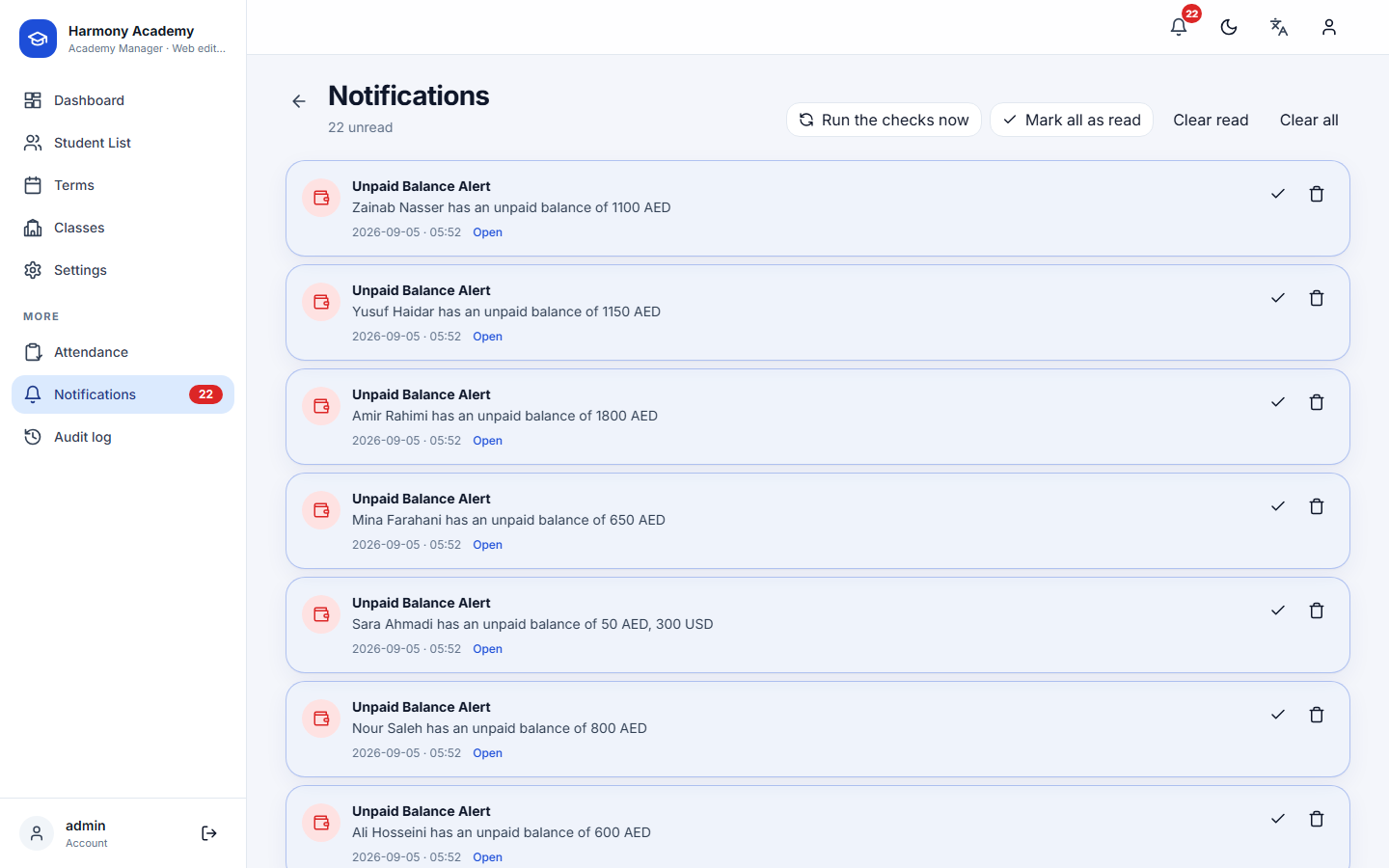
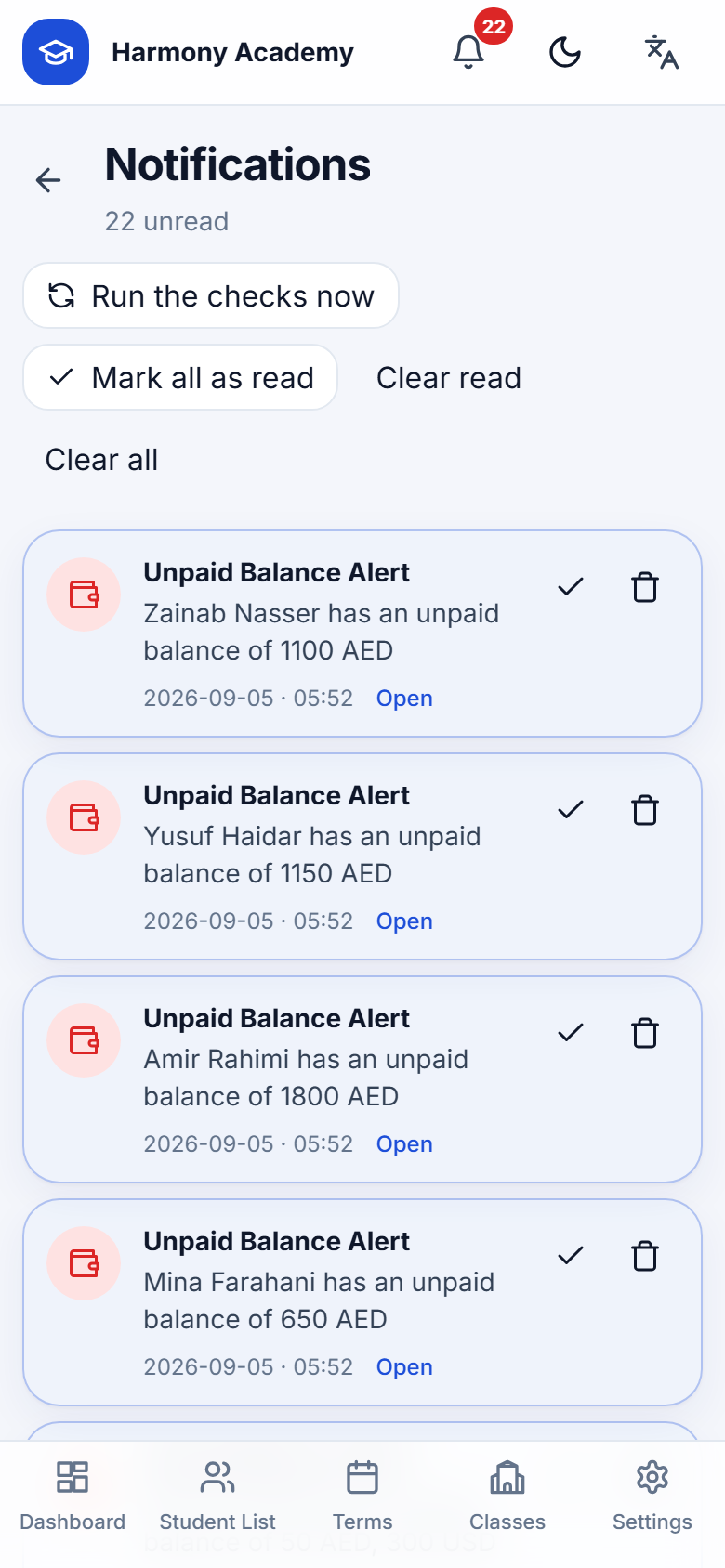
| Alert | Raised when |
|---|---|
| Unpaid balance | A non-archived learner owes money in any currency |
| Enrollment ending | An active enrollment ends within the threshold (7 days by default) |
| Enrollment ended | An active enrollment's end date has passed |
| Attendance not recorded | An active class has a slot today and no session has been saved for today |
| Sessions running out | Remaining credits are at or below the low-credit threshold (2 by default) |
| Credit finished | Remaining credits reached zero |
| Backup overdue | No backup within the backup threshold (7 days by default) |
| Backup completed / restored | A backup was created or restored |
When the checks run
On every visit to the dashboard (at most once a minute), every fifteen minutes on the web server, and whenever you press Run the checks now on the notifications page.
No duplicates
Each alert carries a stable key (the learner, the enrollment, the class and day, the remaining count). A new copy is only raised when no unread alert with the same key exists, so marking an alert as read is what allows it to come back later if the condition persists. Sessions running out is keyed on the remaining count, so you hear about 2 left and then about 1 left, once each.
Managing them
Tap an alert to open the related learner, class or the backup page. Mark all as read, Clear read and Clear all are in the header; the trash icon removes one.
Thresholds
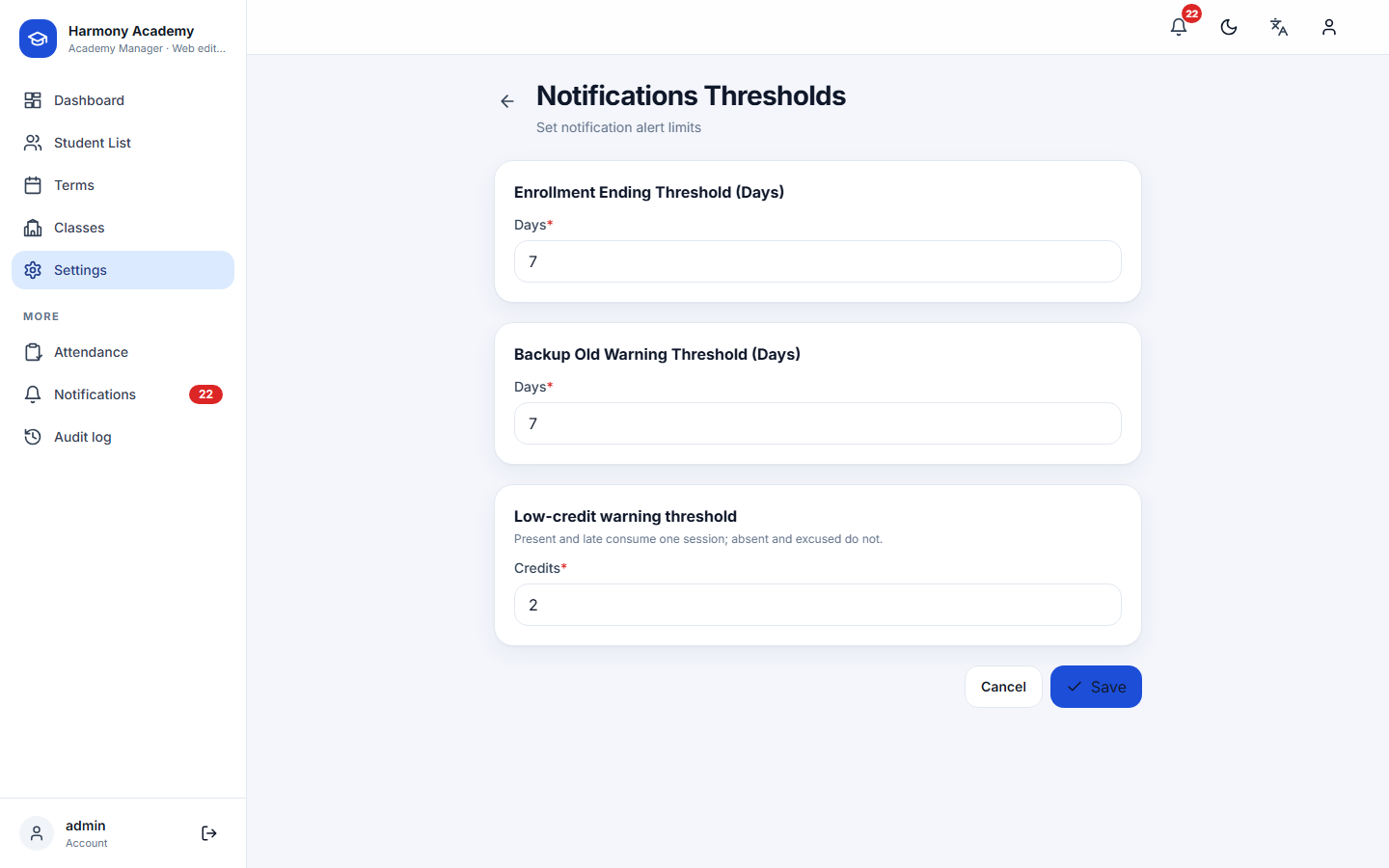
Settings → Notifications sets the ending-soon window, the backup reminder window and the low-credit threshold.