User guide · 3/15
Students
The learner list with its six filters and search, the profile with seven tabs, photos, contact shortcuts, referrers and notes.
The list
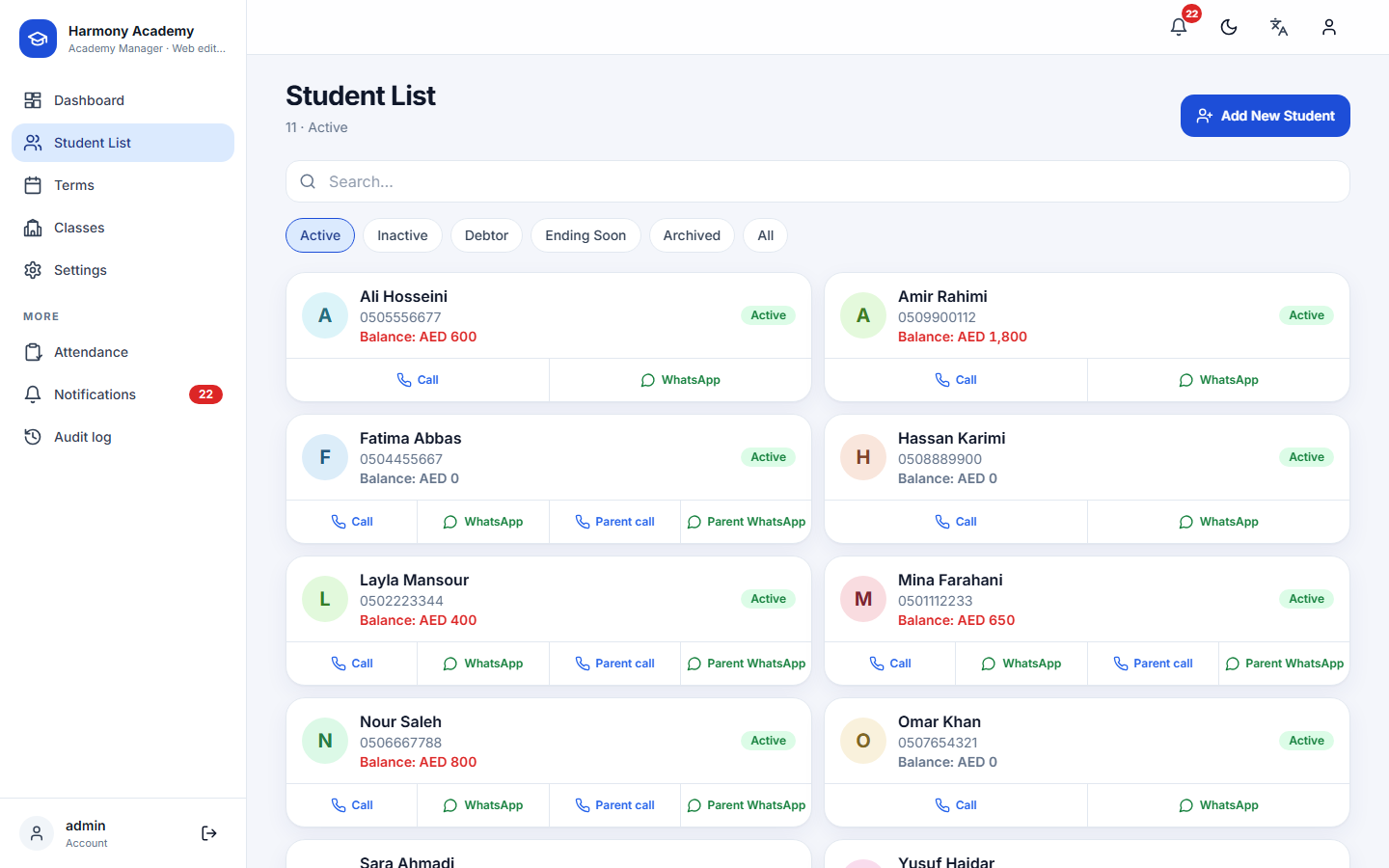
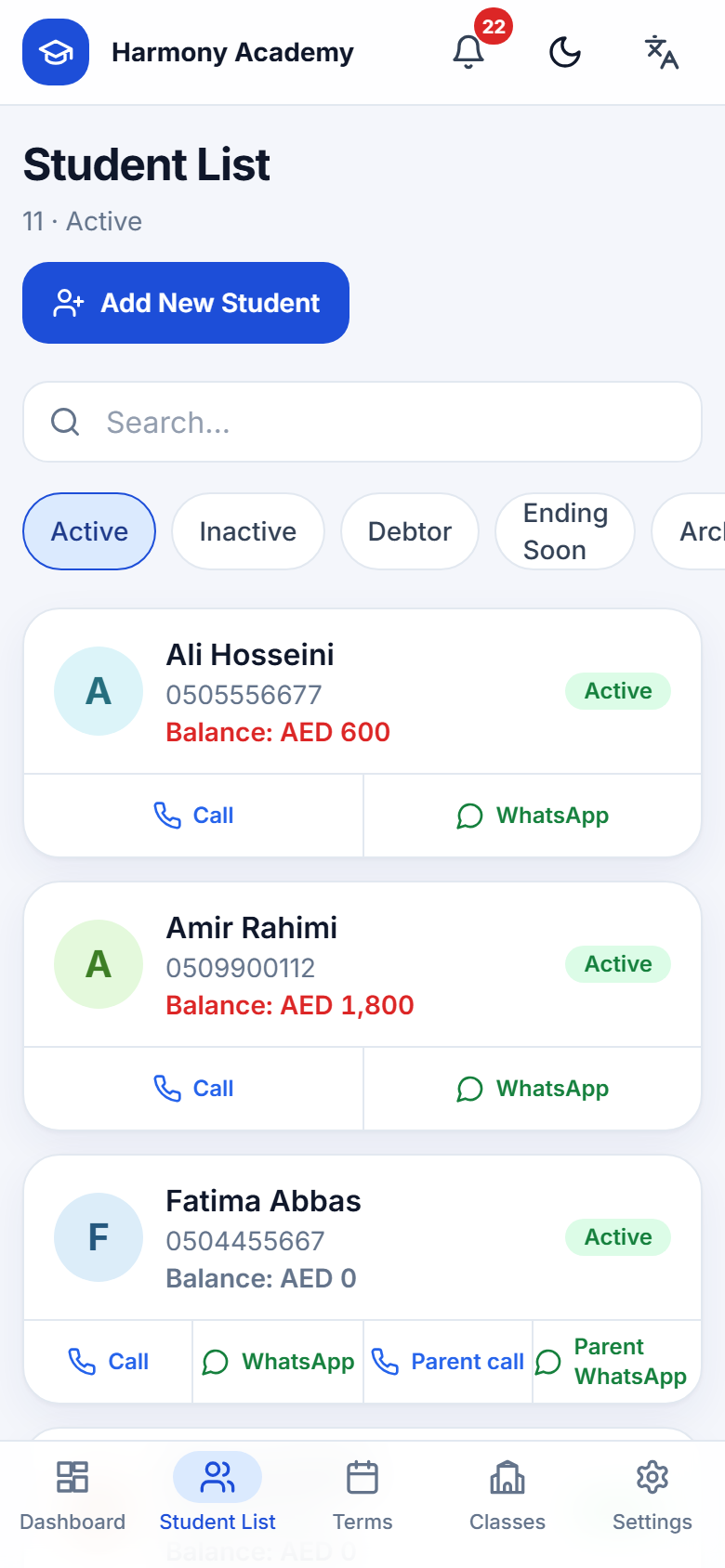
Six filters sit above the list: Active, Inactive, Debtor, Ending soon, Archived and All. Search matches the name, the learner's phone and the guardian's phone. Each card shows the balance per currency, coloured red when owed, green when the learner is in credit, and the Call / WhatsApp shortcuts for the learner and the guardian.
WhatsApp links are built from the academy's country code (Settings → Academy): a local number starting with 0 becomes an international one automatically.
The web edition shows sixty learners per page and pages the rest; the count in the header is always the full total for the filter.
Adding and editing a learner
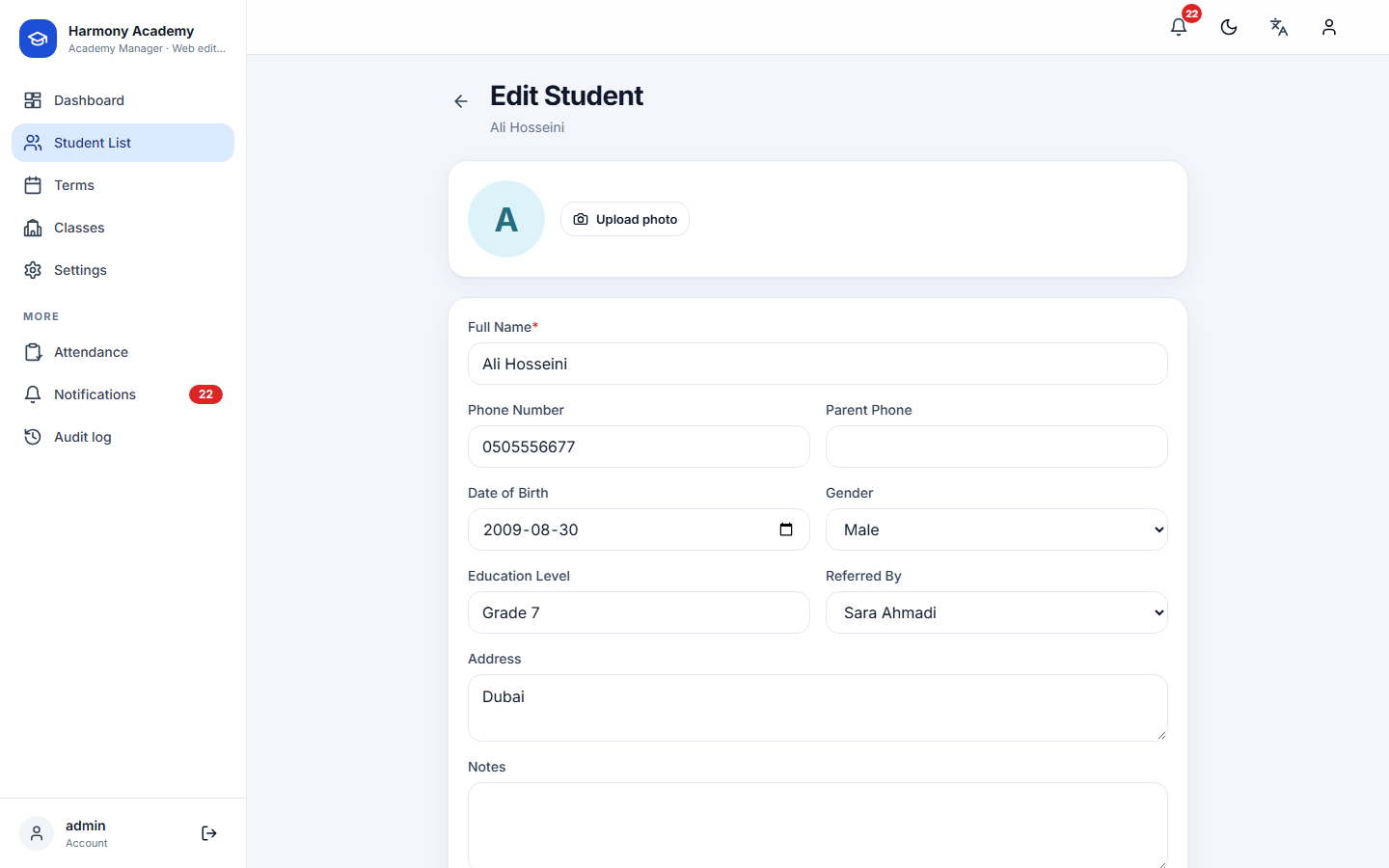
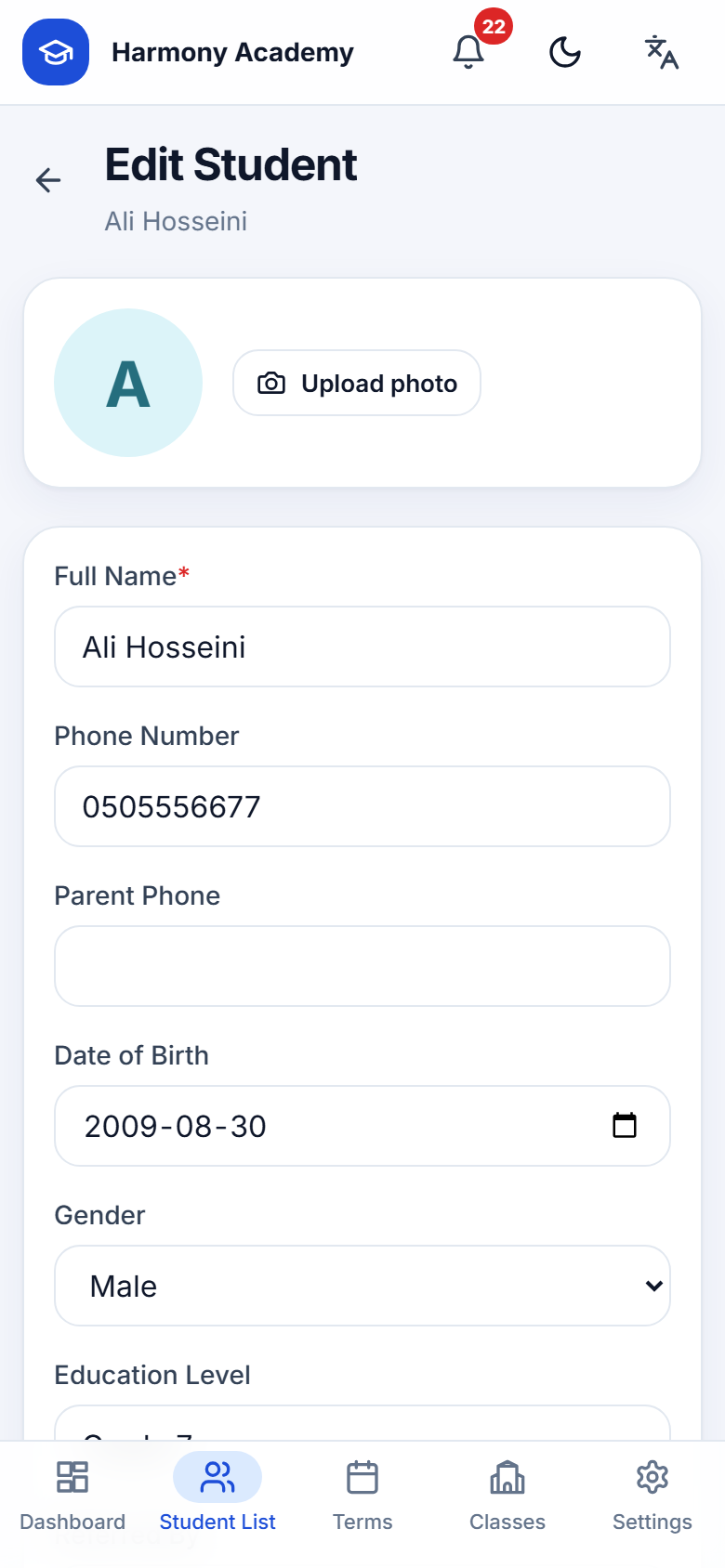
Only the full name is required, and it must be unique among non-archived learners. Everything else is optional: photo, phone, guardian phone, date of birth, gender, education level, address, notes, and the referrer, the existing learner who brought this one in. Choosing a referrer creates a referral link; see Referral program.
When you save a new learner the app offers to enroll them straight away.
The profile
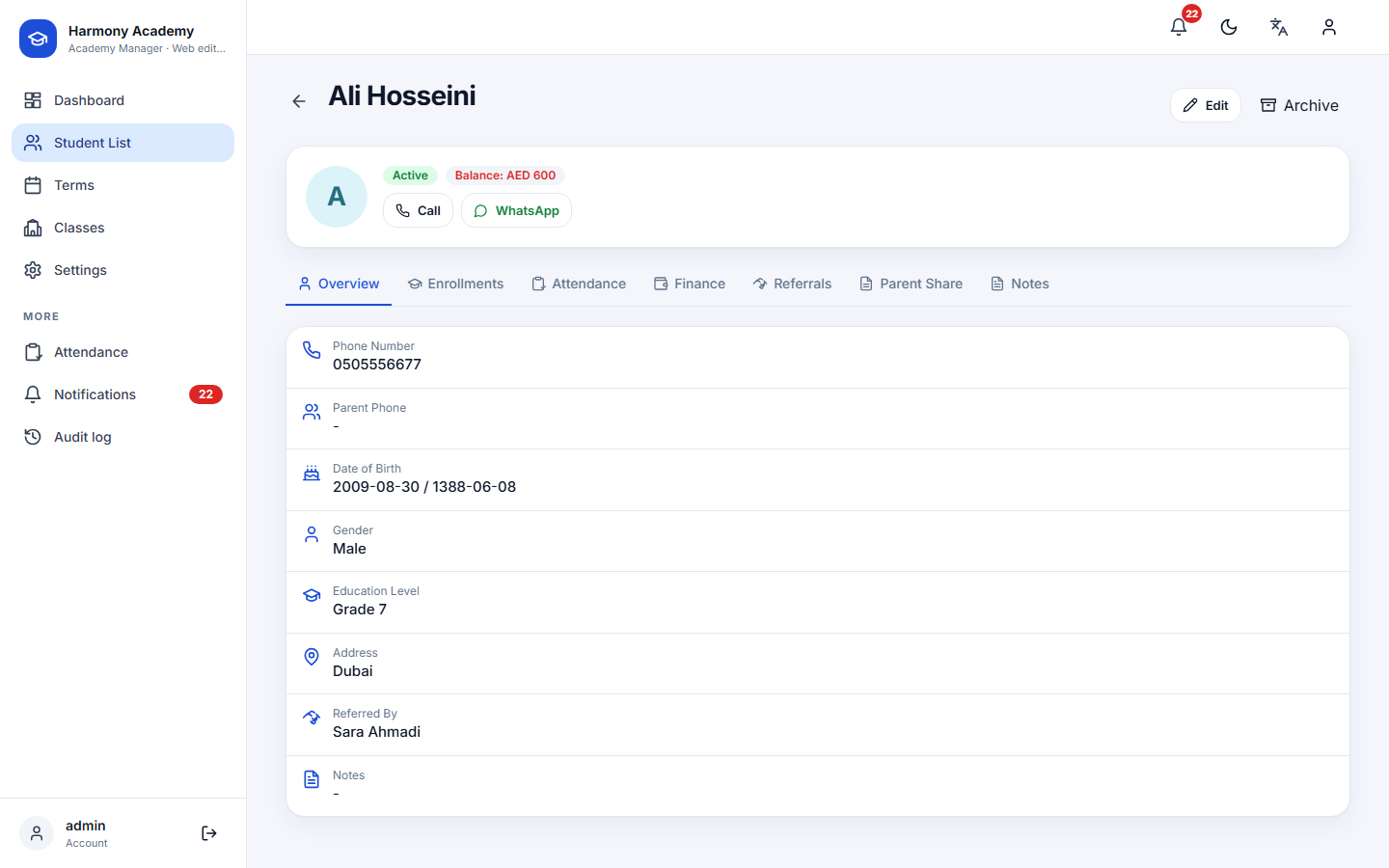
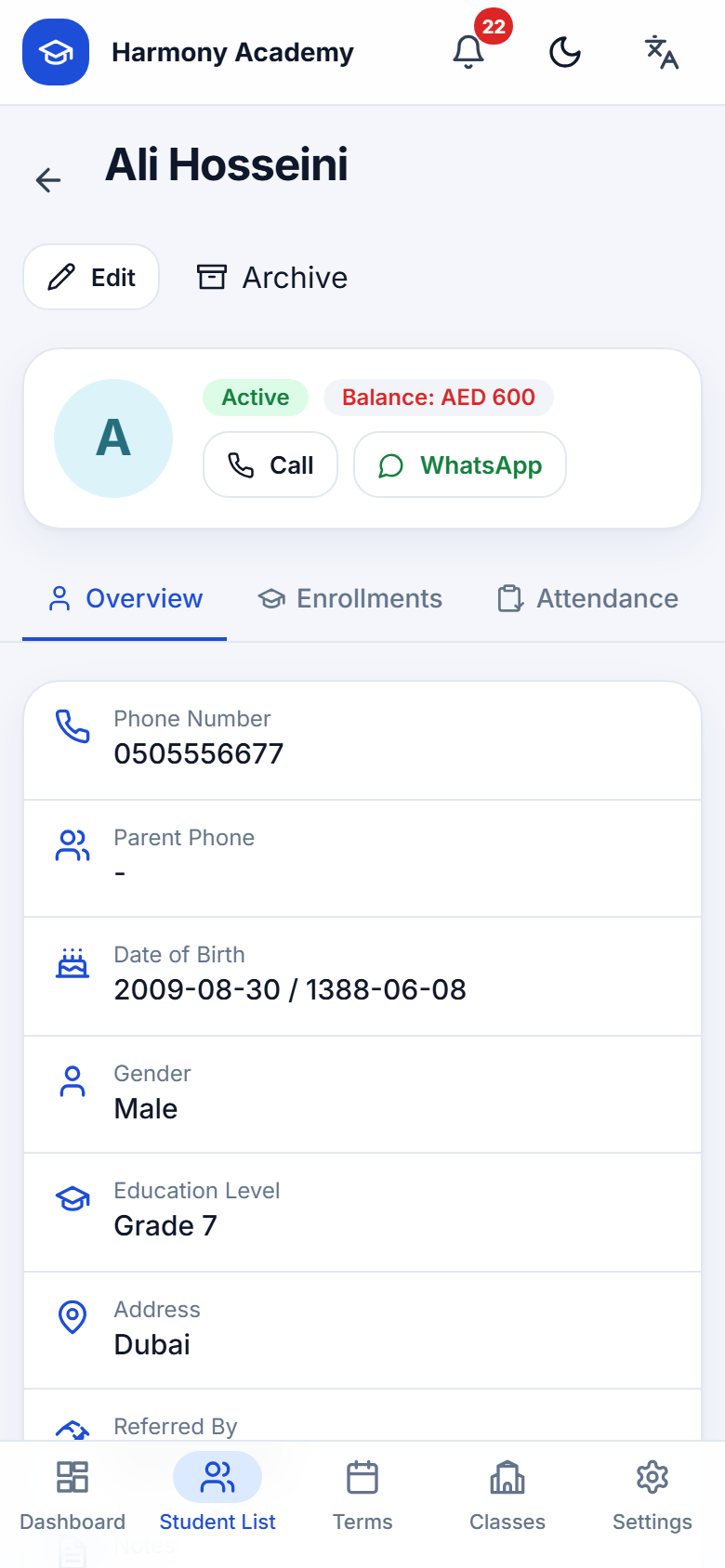
Seven tabs:
| Tab | What it holds |
|---|---|
| Overview | Contact details, birthday, referrer, notes |
| Enrollments | Every enrollment with its class, term, dates, amount, status and a session-credit bar |
| Attendance | Counts of present, absent, late and excused plus the full history |
| Finance | Balance per currency and the ledger; see Finance ledger |
| Referrals | Who referred this learner, whom they referred, and credit earned, applied and pending |
| Parent share | A ready-to-send text report; copy or share it |
| Notes | Dated notes you can add, edit and delete |
Parent report
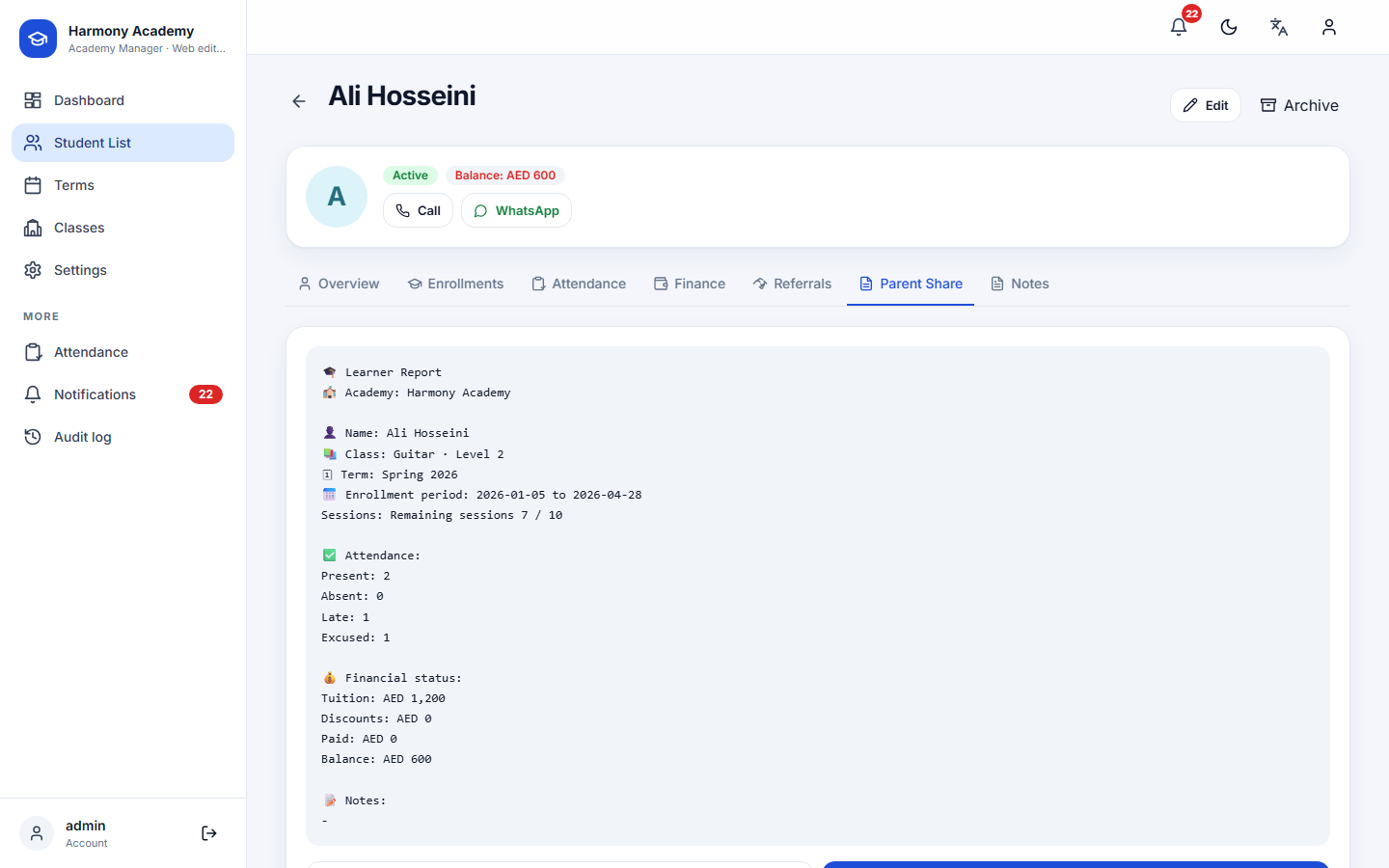
The report is generated from live data in the current language: academy, class, term, enrollment period, remaining session credits, attendance counts, tuition, discounts, paid and balance, plus the learner's notes. Copy it or share it through the phone's share sheet.
Archiving a learner
The Archive action on the profile hides the learner from every list and count and remembers whether they were active or inactive, so Restore brings them back exactly as they were. Permanent deletion is only possible from Settings → Archive; see Archive & delete.